
How to prepare captions or a script
Prepare your script by importing captions, uploading a file, or pasting text. The images below show the actual VIDEOudit app with example material.
Importing, uploading a file, and pasting do not use audit credits. AI analysis starts when you select Run audit.
Import captions from a video URL
In desktop Chrome, install the extension and allow automatic import from the app. Check the video URL and caption collection consent, then select “Import captions.”
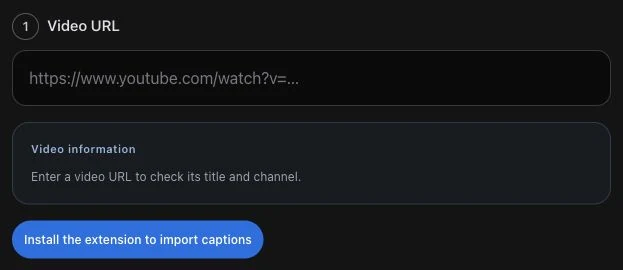
Use a file or a copied script
If you have an .srt, .vtt, or .txt file, choose it under “Upload captions.” You can also paste a copied script into the text field. Either method is an alternative to automatic import.
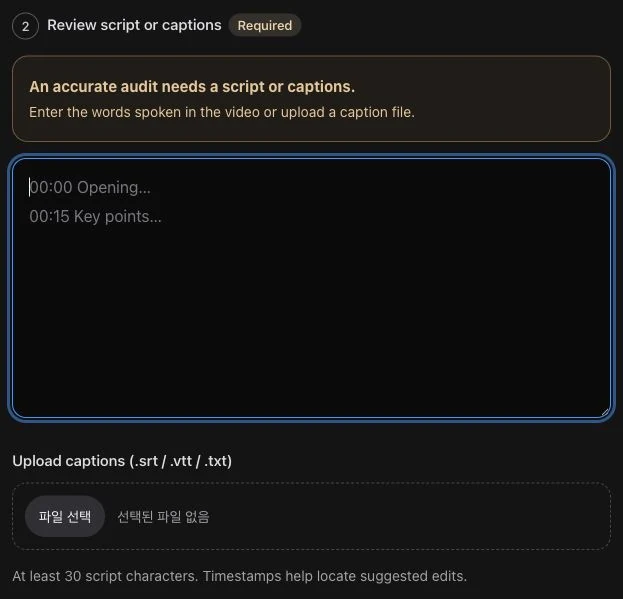
Review the script, then run an audit
Imported captions automatically fill an empty script field. Existing text is replaced after confirmation. Check names, numbers, and timestamps, then select Run audit when ready.
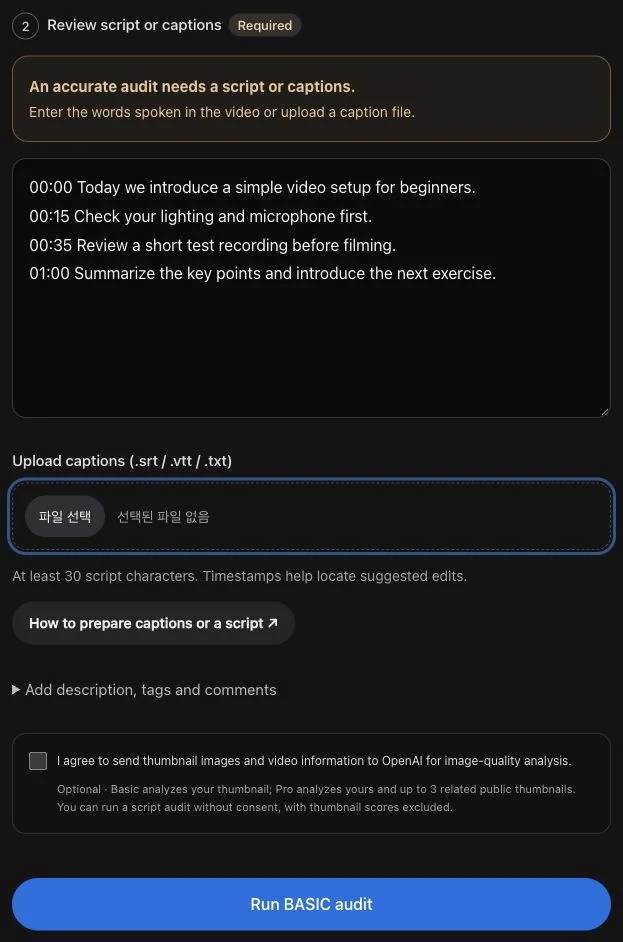
Need to prepare captions yourself?
① My channel · Download a caption file
Open YouTube Studio ↗· Log in with the Google account that owns the video channel.
- Choose “Subtitles” in the left menu
Select your video from the subtitle list. Videos owned by other people are not listed here.
- Choose a language and open the subtitle editor
Choose “Edit” in the subtitle column for your language. Automatic captions may show “Duplicate and edit.” Read any draft-overwrite notice before proceeding.
- Options → “Download subtitles”
In the editor’s options (⋮), choose “Download subtitles.” Select .srt or .vtt if prompted. You do not need to publish captions again to run an audit.
Choose the downloaded file using “Upload captions” above.
Official guide:Download and edit caption files ↗
② Other videos · Copy a transcript
- Expand the description on YouTube
Open YouTube ↗and open the video. Select “More” in the description below the video.
- Choose “Show transcript”
Select “Show transcript” in the description. It is available when captions exist; its location may vary.
- Copy the full transcript → Paste into VIDEOudit
Select and copy the transcript (Windows: Ctrl+C, Mac: ⌘C), then paste into VIDEOudit (Ctrl+V / ⌘V). Include timestamps to help locate edits. YouTube watch pages generally have no caption-file download button.
Official guide:View a video transcript ↗
③ No captions or transcript?
Type what was actually said or paste your original script. A title and description cannot replace the script. Correct names, numbers and product names in automatic captions.
For your own videos, check automatic captions in Studio. Automatic captions are not available for every video.
Official automatic-caption help ↗
Without timestamps, edits are located by sentences. Captions alone cannot measure silence, cuts or facial expressions.